Open your first image
This becomes the first cell of the composition. Select “Add images” to append more photos, up to eight in total.
Combine up to 8 photos in a row, column or grid. Photos keep their ratio and fit inside each cell.
Drop a photo here, or choose one below.
JPG, PNG, WebP · Up to 20 MB / 24 MPYour images stay in your browser.
Merging puts multiple photos on a single canvas. It is useful for a comparison, a photo strip or a compact collage. Unlike an overlay, each photo has its own cell rather than being layered over another image.
This becomes the first cell of the composition. Select “Add images” to append more photos, up to eight in total.
Pick a horizontal strip, vertical strip or two-column grid. Cell size controls each square cell; Gap sets the space between cells. Each photo fits inside its cell without stretching.
Padding and gaps use your chosen background color. Download the merged image as PNG, JPG or WebP, or continue with text and compression.
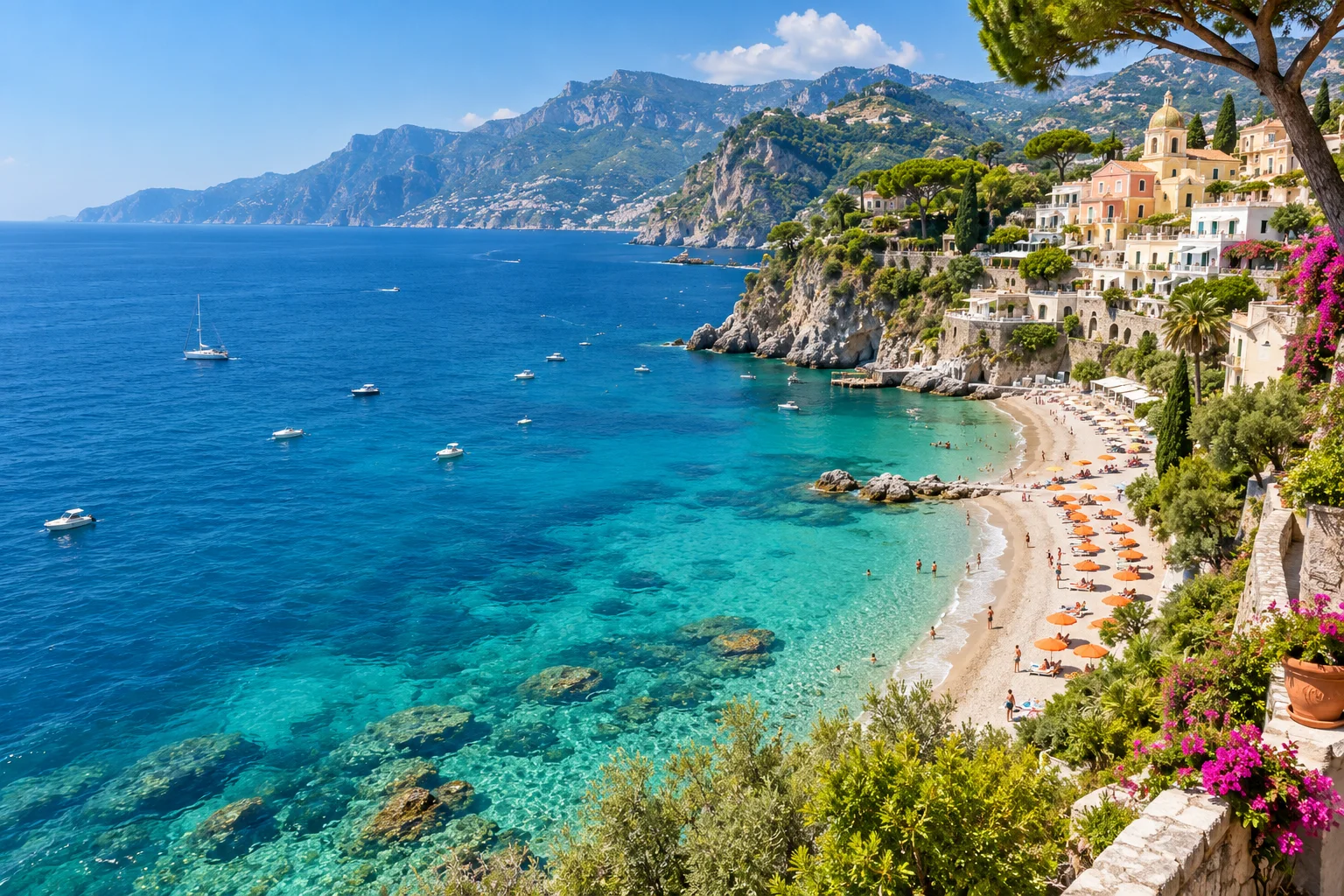 Original
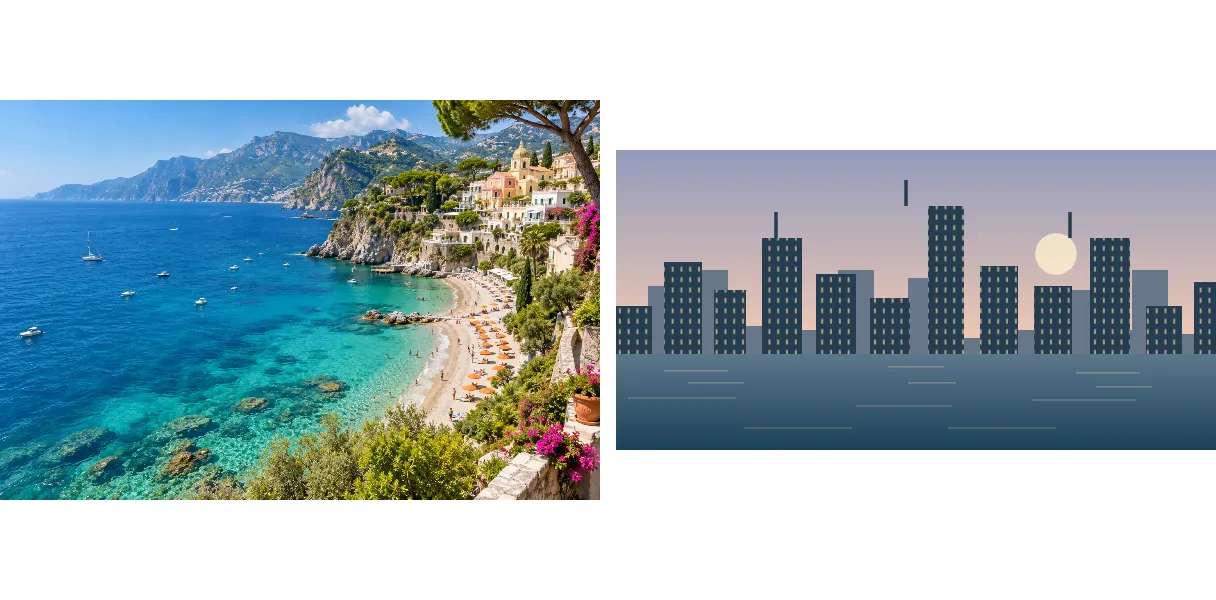 Merge example
A horizontal strip works well for a side-by-side comparison. A vertical strip is useful for a sequence. The grid option uses two columns, so the last row can contain an empty cell. Images follow the first source and then the order they were added; drag-to-reorder is not provided in this version.
Different aspect ratios need padding to fit square cells without stretching. The background color fills that unused space. Crop the source images first if you prefer a tighter fit.
Each cell uses the chosen pixel size, with gaps between cells. For two horizontal 600 px cells and a 16 px gap, the result is 1216 × 600 pixels.
This version fills the collage canvas with the selected background color. PNG export does not make that filled background transparent.
Each file must be JPG, PNG or WebP, under 20 MB and 24 MP. Combined source images are limited to 32 MP, and the output to 24 MP.