Choose a picture
Load a JPG, PNG or WebP. The editor shows the source photo so you can see which parts you are keeping and removing.
Drag a selection on your image or enter precise percentage coordinates. Only the selected rectangle is kept.
Drop a photo here, or choose one below.
JPG, PNG, WebP · Up to 20 MB / 24 MPYour images stay in your browser.
Cropping removes the area outside your selected rectangle. It does not squeeze the whole picture into a new shape. Use it to trim distracting edges, focus on a subject or prepare a smaller composition before resizing.
Load a JPG, PNG or WebP. The editor shows the source photo so you can see which parts you are keeping and removing.
Drag across the preview with a mouse or touch. You can also edit Left, Top, Width and Height as percentages of the source dimensions.
The dimensions below the preview show the crop output size. Download the selection, or use it as the input for resizing or adding a border.
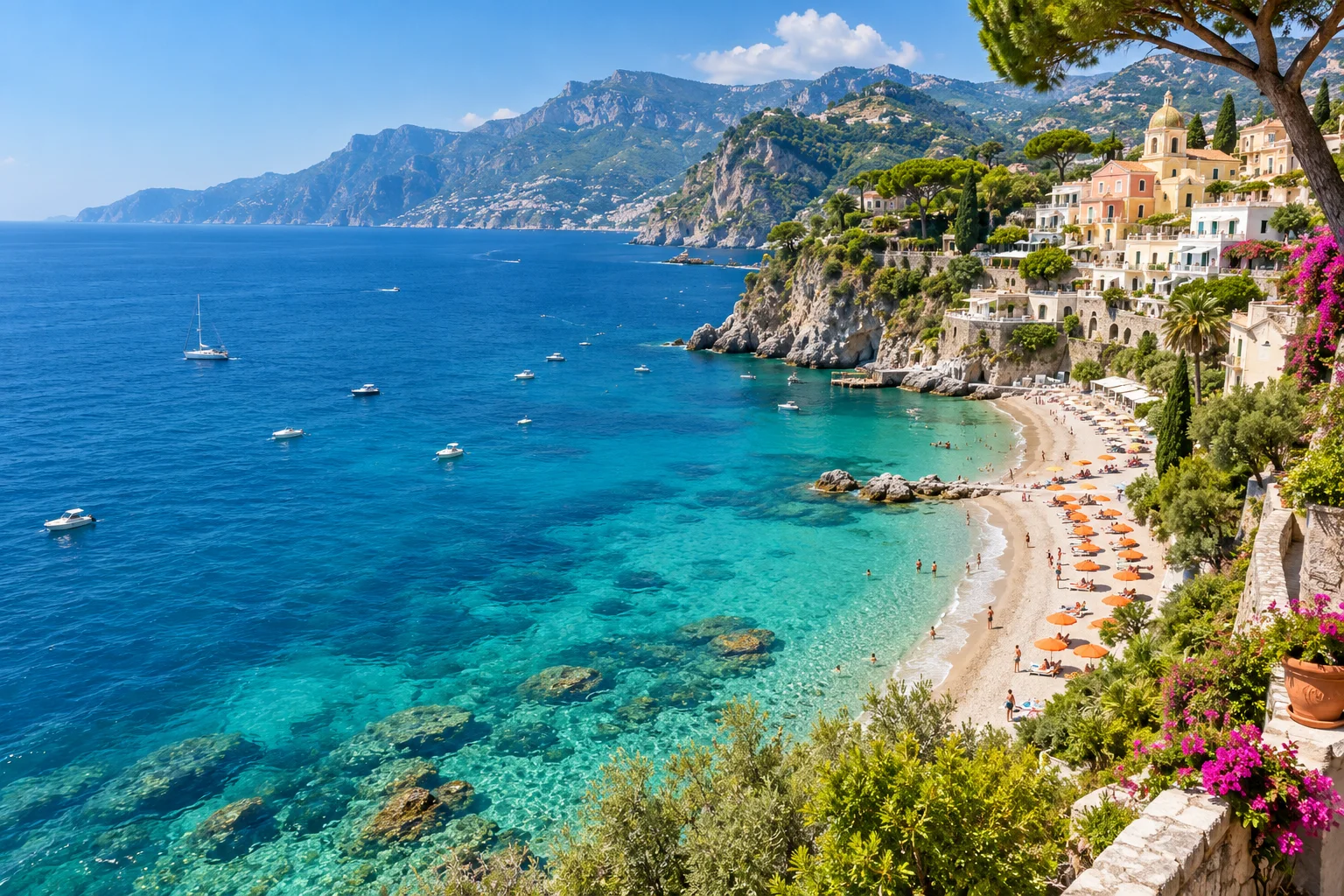 Original
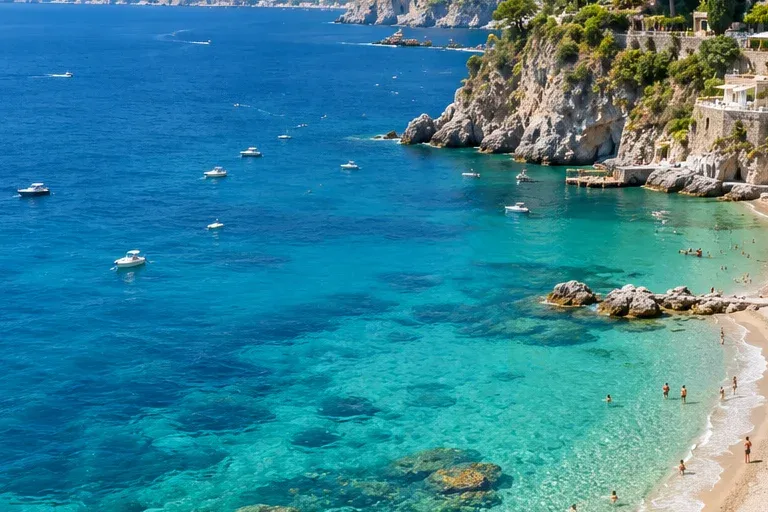 Crop example
To trim an edge, move the selection inward. For an exact output size, crop your composition first and then use the resizer. For a circle, use Circle crop; for a fixed 1:1 or 16:9 canvas, use Change aspect ratio. The crop tool here uses a free rectangular selection.
The whole photo is shown as a selection workspace. The outlined rectangle is what the download keeps; the surrounding area is only context for choosing your crop.
It removes pixels outside the selected area. The kept pixels are not intentionally resized. The output has fewer total pixels because it contains a smaller area.
Yes. Left and Top set the starting position; Width and Height set the selection size as percentages. A selection reaching outside the source is clipped to the image boundary.